Student Help Guide
Grade-It Help
Grade-It Student Quick Start
Solving a problem from start to finish
Think of Grade-It as the paper where you show your work - not just a calculator.
Build the mathematical steps that lead to your answer so the grader can award credit for your work.
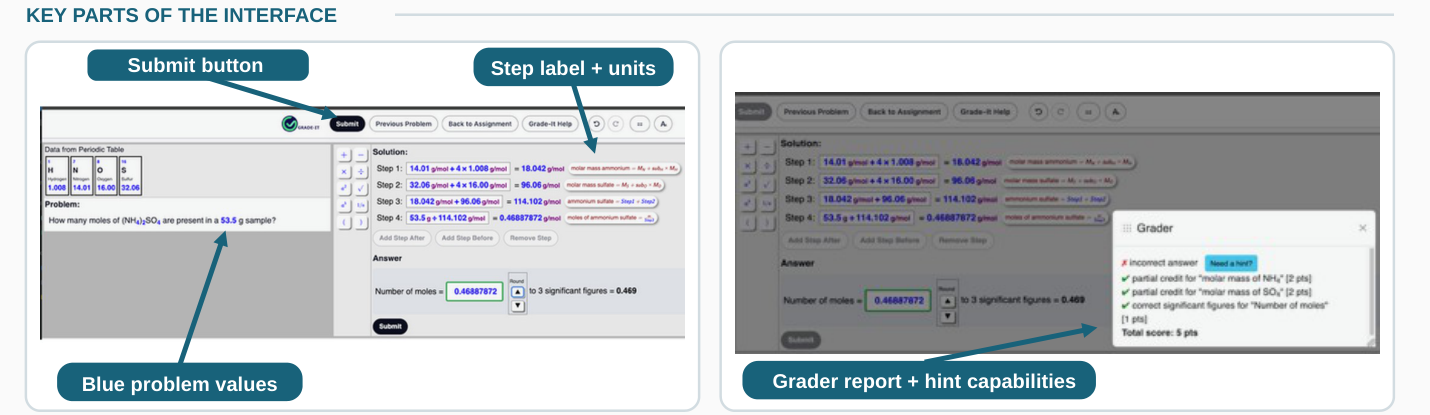
Start
Open the assignment
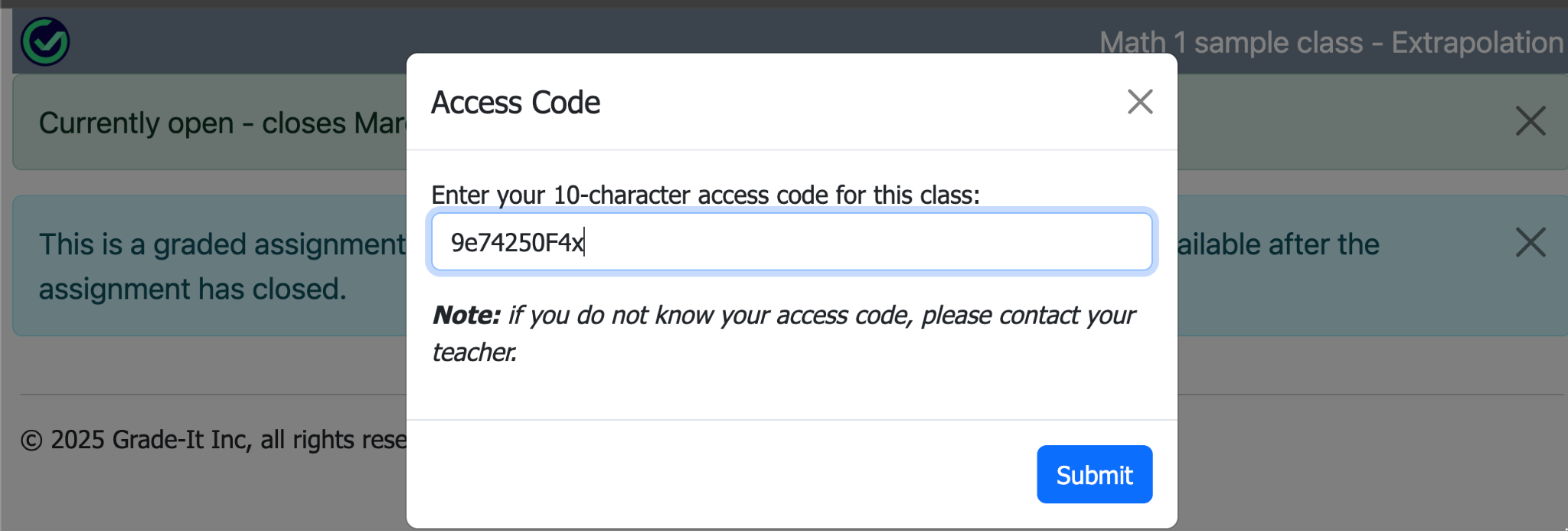
Open Grade-It from your course page. Enter your access code if prompted.
Read the problem
Identify the values shown in blue. Use the correct value for what you are calculating.
Build your calculations
Click, drag, or type blue values and operators into the workspace.
Finish Your Solution
Add step label + units
Click into the white box to label each step and add units to help track your work.
Move your result to Answer
Click or drag your final calculated result into the Answer box.
Set the significant figures
Use the controls to choose the correct significant figures or place value.
Submit + Improve
Submit your solution
When your answer is ready, click Submit to send your work to the grader.
Review feedback + hints
Read the Grader Report to see where you earned partial credit. Use hints if available.
Revise + resubmit
Some assignments allow multiple submissions. If attempts remain, use the feedback to revise and resubmit.
Important Grade-It Conventions
- Show every operation. Do not skip a step just because it uses ×1, ÷1, +0, or -0.
- Multiply - don't repeat-add. Use 4 × 1.008 rather than adding 1.008 four times.
- Put an × between touching parentheses. Write (a+b) × (c-d), not (a+b)(c-d).
Overview
Grade-It is an online system on which you can solve constructed-response problems, much like you currently do using paper, pencil, and a calculator. The system instantly grades your work and awards points for correct steps, just like your TAs and professors may grade for partial credit. You can use the partial-credit score and information in the grader report as feedback to improve your solution. The platform determines which of your steps earn points by comparing your work to a scoring rubric. Your teacher may activate the Hint feature on assignments, providing guidance on a productive next step you can take, based on your actual submitted answer.
Unlike other online quantitative problem grading platforms you have seen, Grade-It looks at the mathematical steps that you take to solve a problem, not the numerical value of the final answer. If you get part of the math right, you will get partial credit for your work. Unlike other online systems, you do not simply type in the final answer. Instead, you must construct your solution mathematically on the platform's workspace.
You solve problems by placing the blue values in the problem statement and using the calculator keys in one or more steps to generate your final answer. You can place values three ways:
- Clicking. The blue value will be placed at the cursor's position.
- Drag and drop. Click and hold a blue value, drag it to the desired position in the workspace, then drop it there.
- Typing. Only valid values matching the problem's blue values can be entered. If you type part of a value, Grade-It will show matches you can select, similar to autocomplete. Typing values is part of the keyboard-only accessibility feature.
Accessing Grade-It
There are two ways of accessing the platform. Your institution may have enabled Grade-It integration with your course's learning management system (for example, Moodle, Canvas, or Blackboard). For LMS-integrated courses, your instructor will create a link on your course website that opens your assignment in a new browser window, with no additional sign-in required. If LMS integration is not enabled, you can access the stand-alone website.
Accessing the Stand-Alone Grade-It Website
- Your instructor will distribute a unique access code to each student, in most cases by email.
- Click the link on the course website to open a Grade-It assignment. The URL will be beta.grade-it.co/assignment/ followed by a number.
- Log in with your access code.
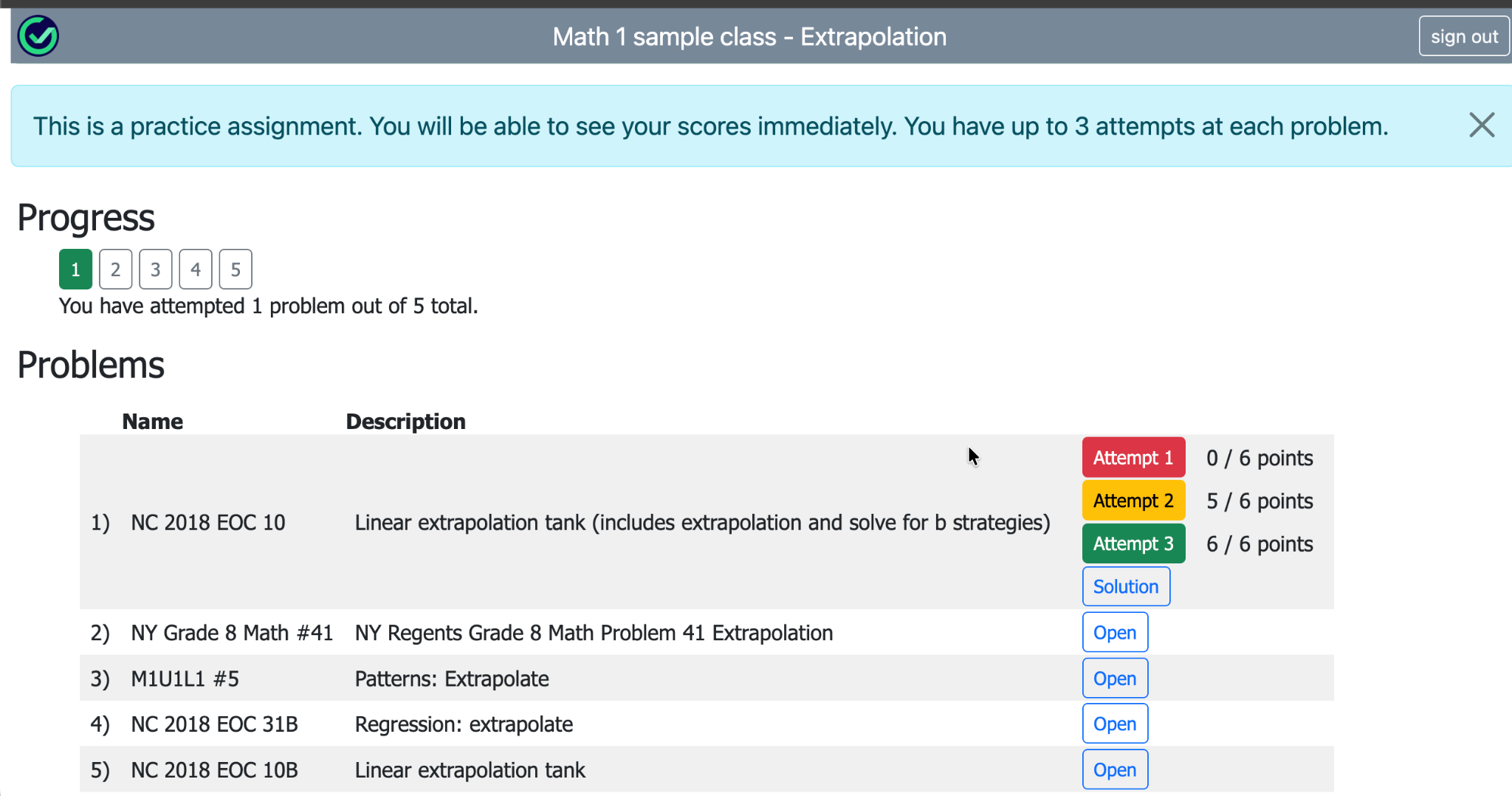
- You will see your assignment, with a progress bar along the top. Your scores on submissions will be displayed on practice-mode assignments. Your instructor may allow multiple submissions.
Equipment Required
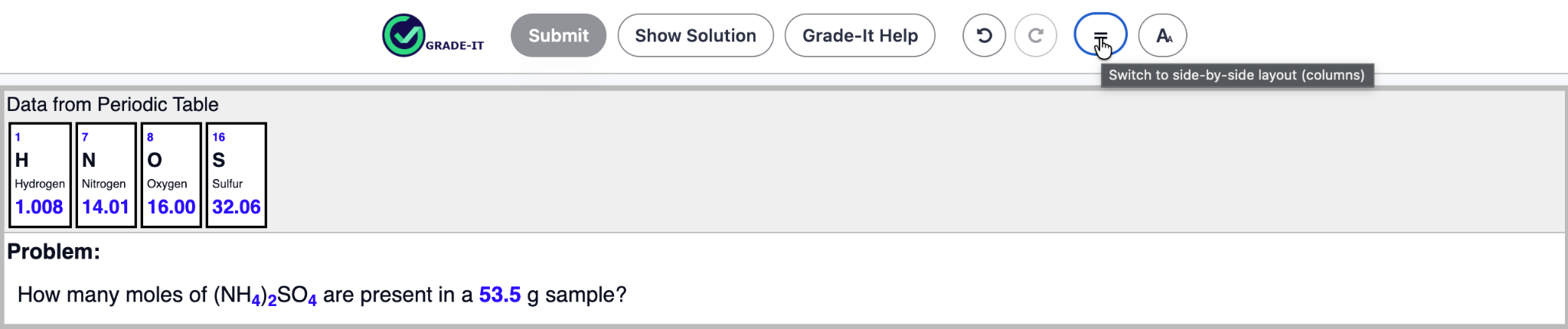
Grade-It works on Mac and Windows devices, iPads, and Chromebooks. Functionality on Android tablets has not been fully evaluated. We recommend Chrome or Safari. Firefox is not recommended because it has some compatibility issues. Larger screens work better, especially for longer problems with more steps. You can adjust the layout (vertical or side-by-side) and font size to suit each problem using the buttons at the top right.
Layout of the User Interface
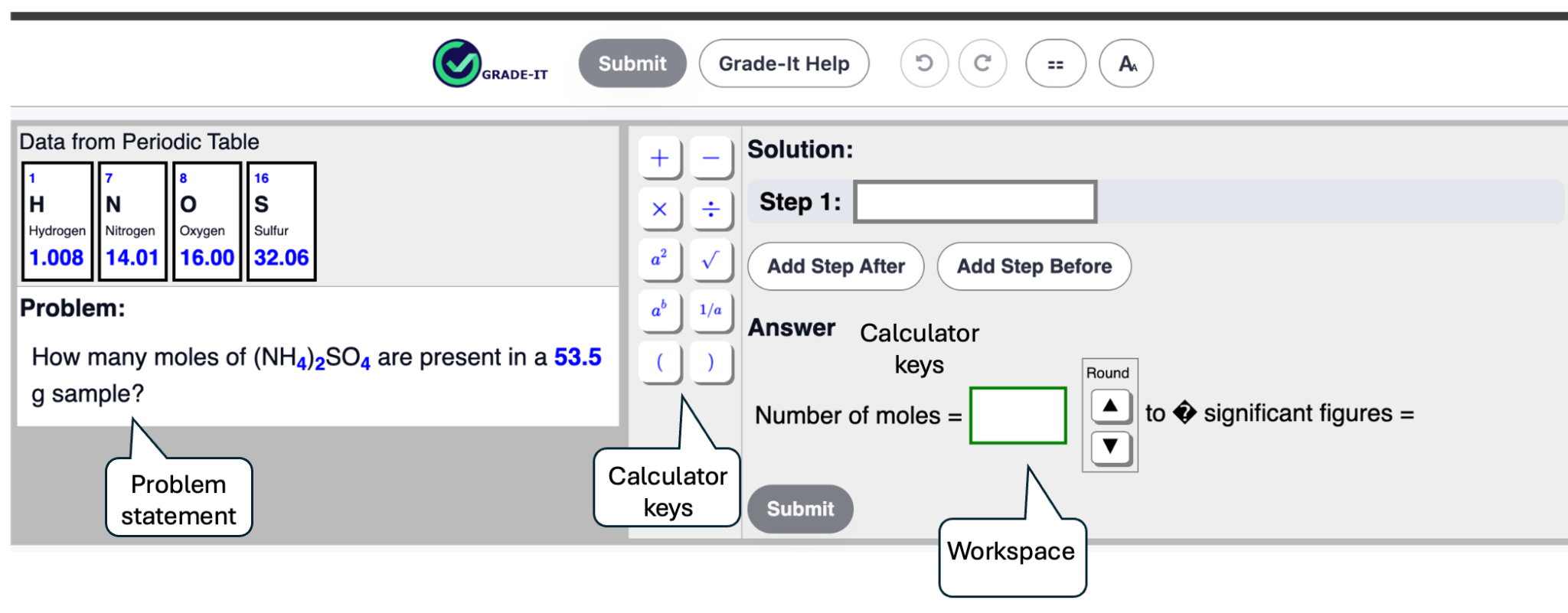
The user interface is divided into three main sections: the Problem Statement, the Calculator Keys, and the Workspace, as shown in Figure 4. You will do your work in the workspace, constructing calculations in steps and inputting your final answer in the Answer box. You may also need to round to a place value or select the number of significant figures.
To construct your solution, use the blue values in the problem statement and the calculator keys. Clicking a blue value or key places it at the cursor's position. You can also drag and drop blue values or operations into a specific position in any step. You may type values or operators, but only inputs that match the blue values or available operators will be accepted.
Rubrics and Grading
Once you construct your answer to a problem, enter the final result into the Answer box by clicking, dragging and dropping, or typing, then select Submit. Grade-It's algorithms compare the calculations you set up to the rubric created by the problem author. The rubric awards points to calculations that lead to the correct answer through one or more strategies.
This process is similar to how instructors or teaching assistants grade problems solved with paper and pencil: they look for work that corresponds to the steps that earn points on the rubric. Grade-It can identify calculations that are algebraically equivalent to those on the rubric. It then displays a grader report showing the number of points awarded and the rubric calculations for which you received credit. Grade-It automates partial-credit scoring based on your actual solution strategy.
Solving Problems
Problem values you can use are displayed in blue in the problem statement. Solve the problem by clicking, dragging, or typing problem values into the workspace, as shown in Figure 6. If you make a mistake, remove the unintended value or calculator key by dragging it out of the step, using Undo, or pressing Backspace. You can also remove a step. Within a step, drag and drop to change the position of a value or calculator key.
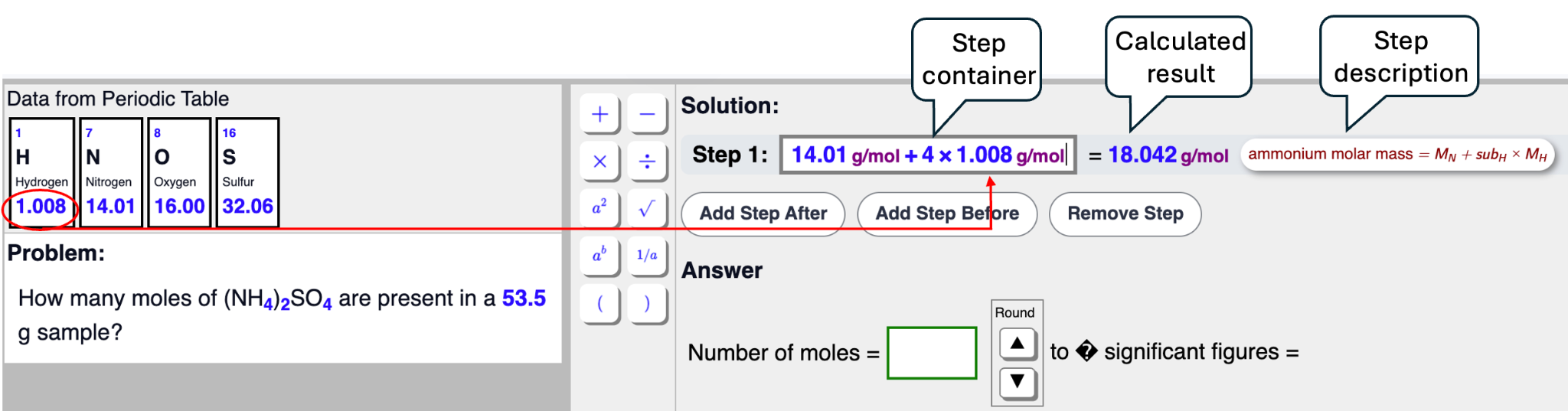
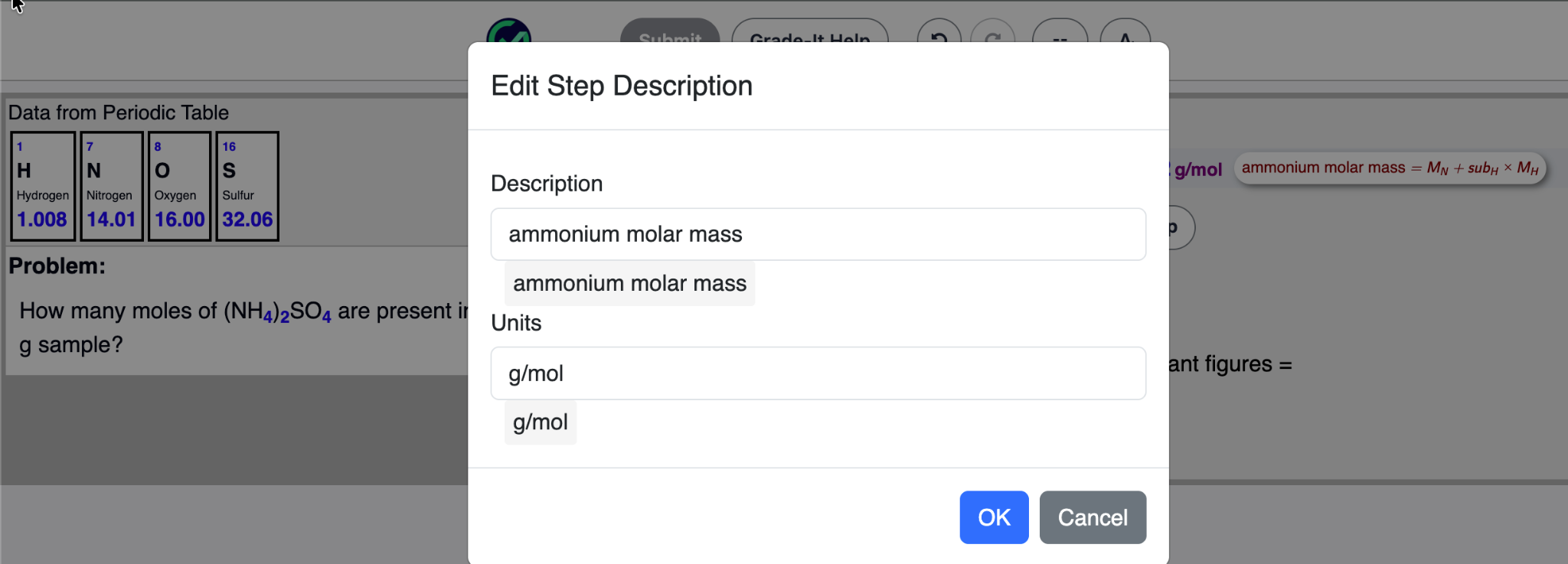
In Figure 6, the atomic mass of hydrogen, 1.008, is placed into the Step 1 workspace. The step result is calculated automatically. A bubble to the right displays the step description. Click the left side of the bubble to optionally add a description and units, which can help you track your logic and use dimensional analysis. The grader evaluates your calculations, not the description. If you add units to a result, the units accompany the numerical value when it is used in a later step.
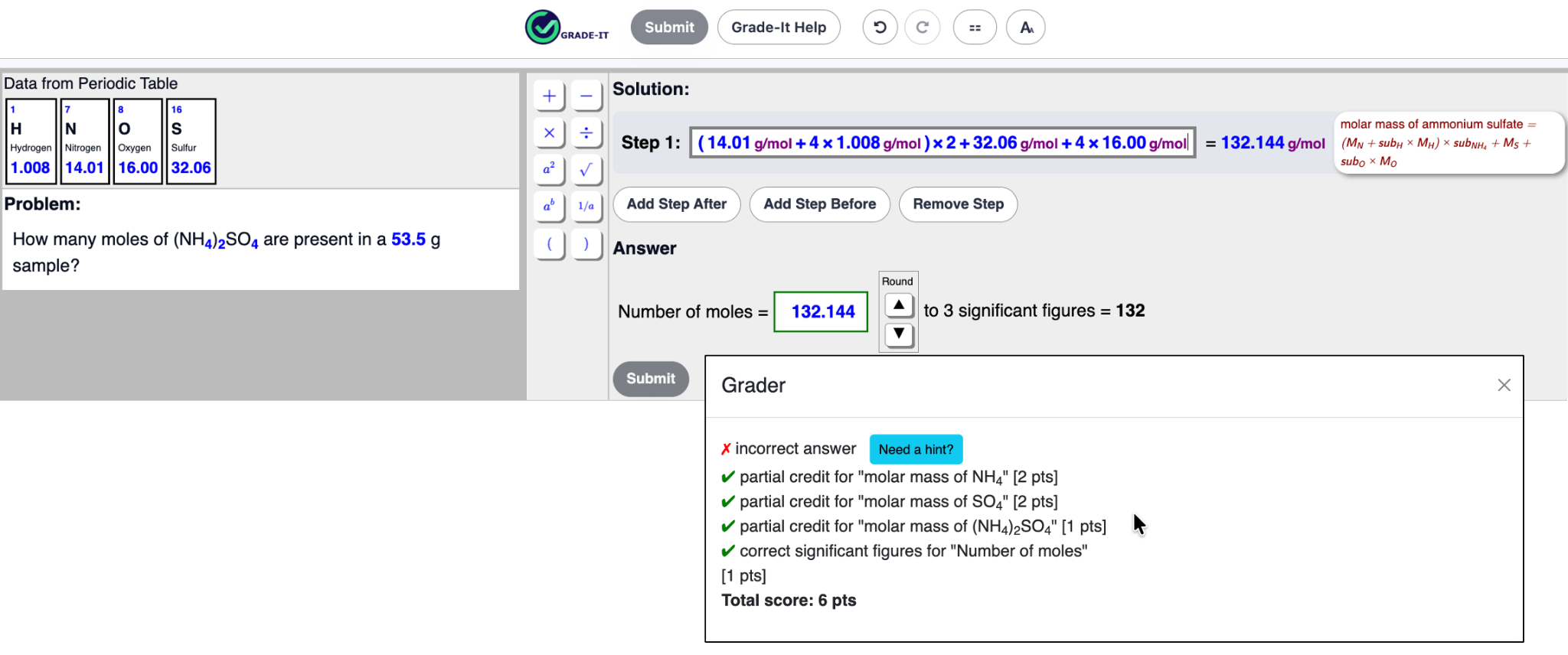
Continue solving the problem, adding steps as needed, until you have calculated your final answer. You can use the result of one step in a later step, and you may solve a problem in a single step if appropriate. Figure 8 shows an almost completely correct answer, but the student did not account for the subscript 2 on ammonium.
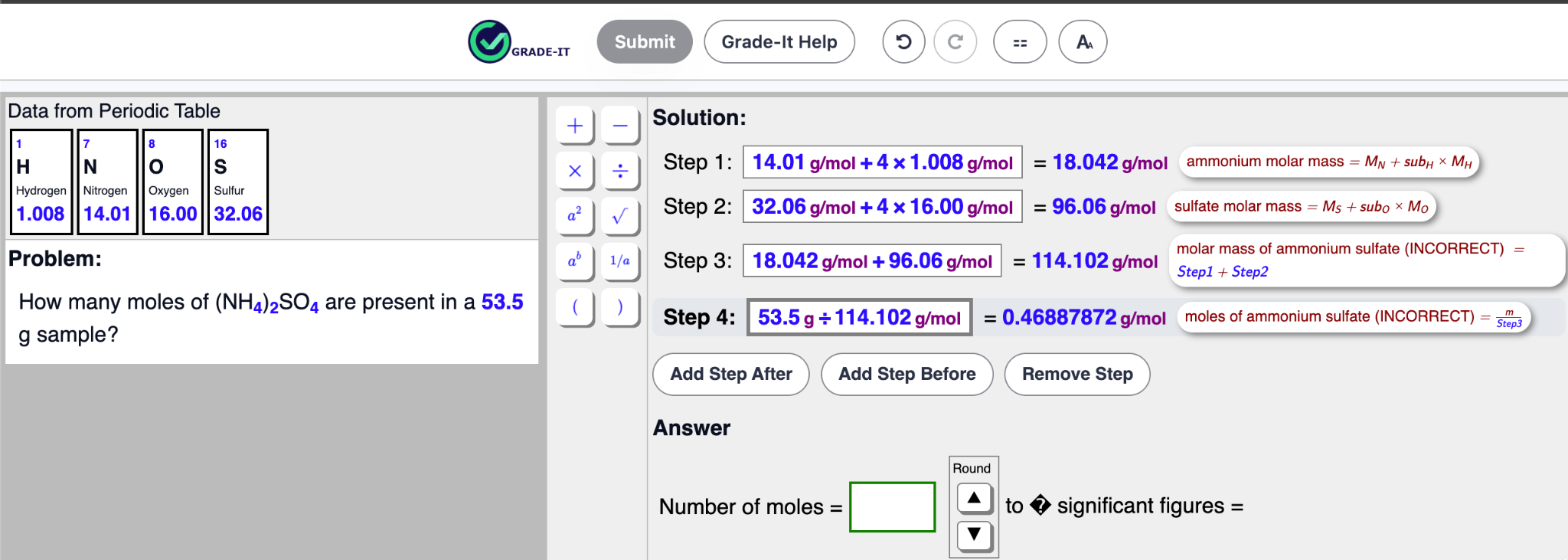
Once you have calculated the final answer, drag it into the Answer box. You can also activate the Answer box by clicking it, then click the final step result. Use the arrows to round appropriately: significant figures for multiplication or division, and place value for addition or subtraction.
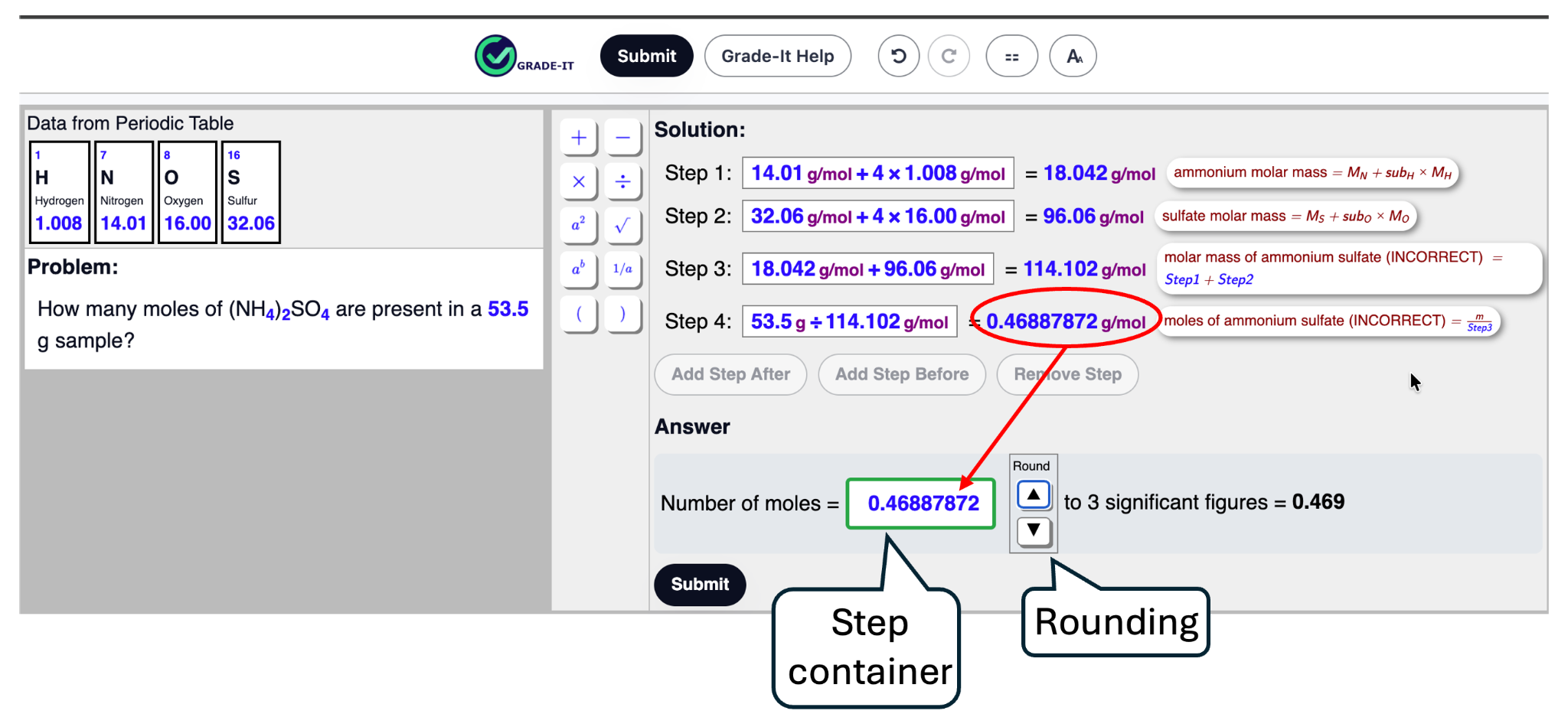
When the Answer box is complete, the Submit button becomes enabled. Select Submit to send your work to the automated grader. The grader evaluates your solution and returns an assessment.
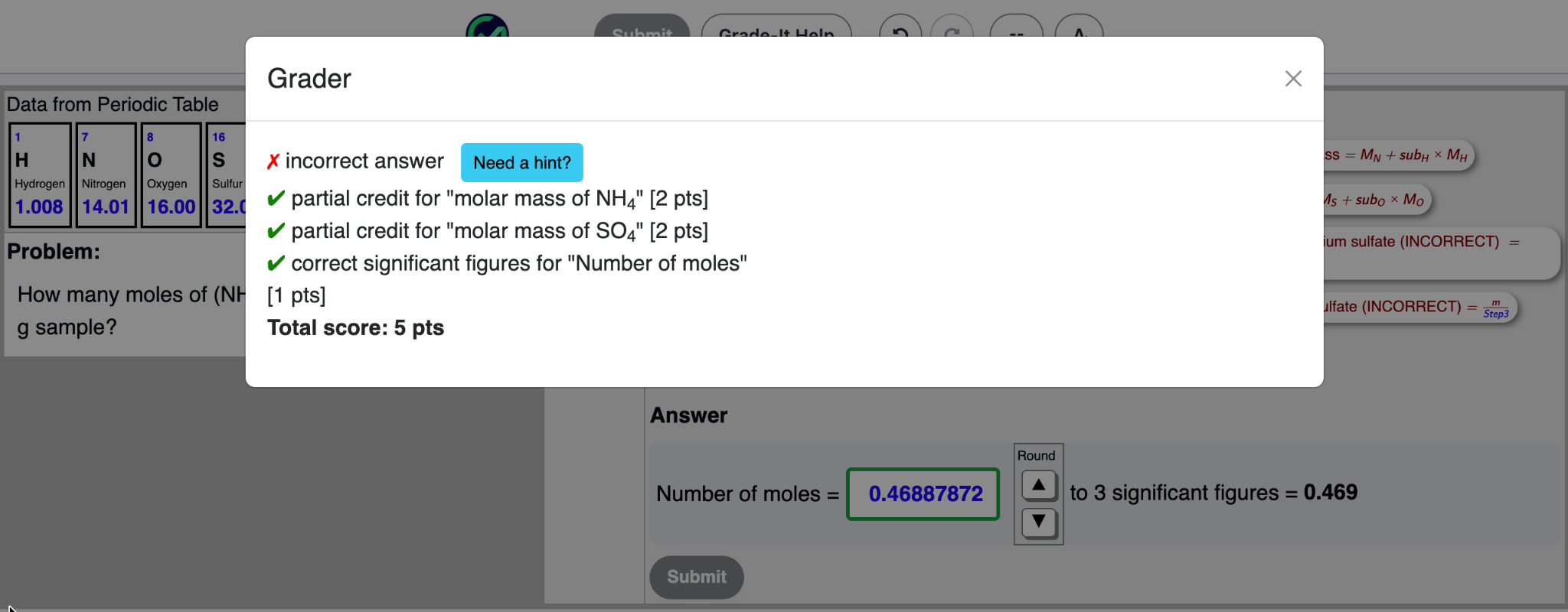
Feedback, Scoring, and Hints
When your answer is fully correct, the grader report will say so. When your answer is partially correct, the report shows which parts of your submitted answer matched rubric steps and earned points. You receive credit for calculations contained in the submitted answer. Carefully analyze the grader report when you do not earn full credit: it provides instant feedback that can help you determine how to correct your solution.
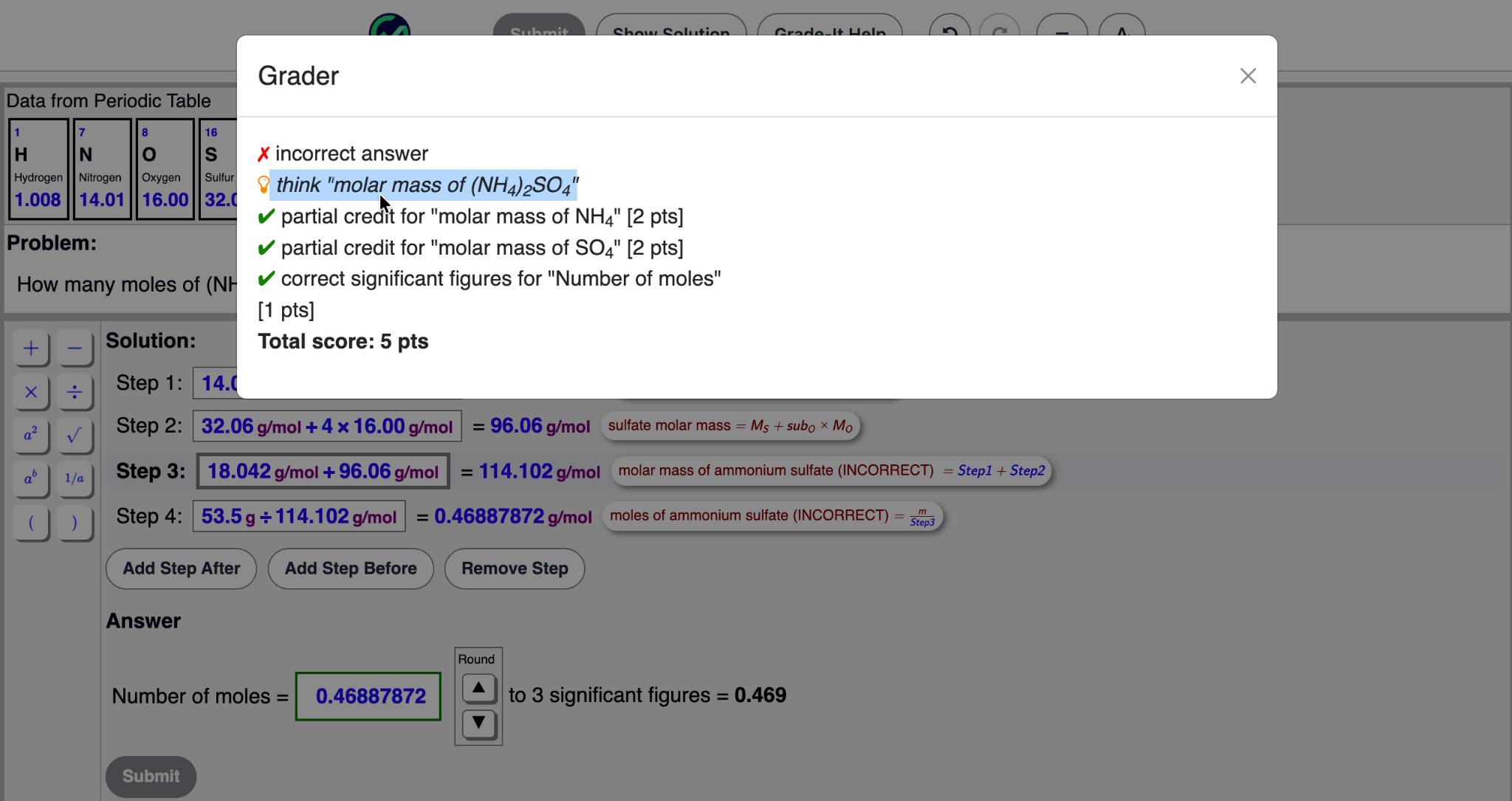
Your teacher may enable hints on some assignments. After submitting an answer for less than full credit, the Hint button will appear. Selecting it provides specific, actionable guidance. The hint shown in Figure 11 prompts the student to think about the molar mass of (NH₄)₂SO₄, including the omitted subscript 2 for ammonium.
How to Solve Problems to Earn the Most Credit
- Don't omit any steps. If a problem involves adding zero, multiplying by one, or multiplying and dividing by problem values that happen to have the same numerical value, you must still include those calculations. The grader evaluates your mathematical steps. If you take a shortcut and omit a step, you can lose points. Think of Grade-It as the paper on which you show your work, not merely as a calculator.
- Problem values must be considered in context. The value 4 appears twice in the formula for ammonium sulfate. One represents the number of hydrogen atoms, while the other represents the number of oxygen atoms. They are not interchangeable. Grade-It tracks the symbols associated with the values, not only the numerical values. Hover over a value to see its distinct label.
- All of the values you need are provided in the problem statement. The statement may provide more information than you need, but everything required to solve the problem is included. Think of it as a puzzle with all the necessary pieces.
- Keep track of your work. Smaller steps make your work easier to follow and revise. Labeling steps helps you analyze your approach when you do not earn full credit. Adding units to every result can also reveal incorrect approaches through dimensional analysis.
- Follow these conventions:
- Use multiplication between touching parentheses. Write (5-3) × (7+3), not (5-3)(7+3).
- The minus sign may also be used as a negative sign.
- Use multiplication instead of repeated addition where possible. Grade-It rubrics use multiplication strategies. Figure 12 shows multiplication in Step 1 and repeated addition in Step 2; the repeated-addition approach may not earn credit.
- Think of Grade-It as the paper, not the calculator. Include all steps, even when they involve multiplying or dividing by 1 or adding or subtracting 0. Grade-It tracks variables, not merely values.

Keyboard Navigation and Accessibility
Grade-It supports keyboard-only navigation and screen readers. You may type problem values and operators, but Grade-It accepts only values provided in the problem statement or generated as step results. You cannot enter unrelated values.
Keyboard-Only Navigation
One step container or answer container is always active: it has a thick border and a blinking insertion cursor. Everything you insert - whether you type it, choose it from the search dropdown, or select it from the calculator keys - is placed at that cursor.
- Tab and Shift+Tab (or the Up and Down Arrow keys) move the insertion point between step containers and answer containers. Tab also stops on each step-description label (Step 1, Step 2, and so on); press Enter or Space there to edit the description.
- Left and Right Arrow move the cursor within the active container.
- Type any character to open the search dropdown, which lists matching calculator keys, problem values, and available step results. Press Enter to insert the selected match at the insertion point; use Backspace to edit the search text and Escape to close the dropdown.
- To insert an earlier step result, search for it by typing, or click or drag its badge into the active container. Step-result badges are not Tab stops.
- Tab to the calculator keys or problem values, focus the one you want, and press Enter or Space to insert it at the insertion point.
- Delete or Backspace removes the item next to the cursor in the active container.
On the assignment page - the list of problems and your progress - press Alt+Tab (Option+Tab on Mac) to move focus between the Progress list and the Problems list.
Keyboard Shortcuts
| Shortcut | Action |
|---|---|
| Ctrl+Z / Cmd+Z | Undo the last edit. |
| Ctrl+Y / Cmd+Y | Redo the last undone edit. |
| Ctrl+H / Cmd+H | Open the Grade-It help document. |
| Ctrl+J / Cmd+J | Add a step after the active step. |
| Ctrl+K / Cmd+K | Add a step before the active step. |
| Ctrl+D / Cmd+D | Delete the active step. |
| Ctrl+Enter / Cmd+Enter | Submit your answer or answers. |
| Alt+Tab / Option+Tab | Move focus among the header, problem, calculator keys, and solution sections. |
Editing and Display Features
- Insertion/deletion cursor. Shows where the next value or operator will be placed in a solution step.
- Add or remove steps anywhere. Use Add Step Before, Add Step After, and Remove Step to edit the solution structure.
- Color-enhanced units. Units are easier to distinguish from numbers and operators.
- Common header controls. Undo and Redo controls appear at the top right for step edits.
- Flexible layout. Use the layout button to switch the Problem and Solution areas between vertical and side-by-side views.
- Screen-reader support. Grade-It includes screen-reader support for enhanced accessibility.
© 2026 Grade-It Inc., all rights reserved.